
Step by step
- Pick Story above the record button. Choose what kind of story: Tell a tale, News report, How-to, Book report, Joke, Science explainer, Shout-out or Interview. Under Creator stories, part of YipYappy Plus, are Reaction, Explain this clip, Rate it, Top 3 and more.
- Pick a theme: it gives every part a scene, and you can change any of them later. Or tap No theme to pick the scenes yourself.
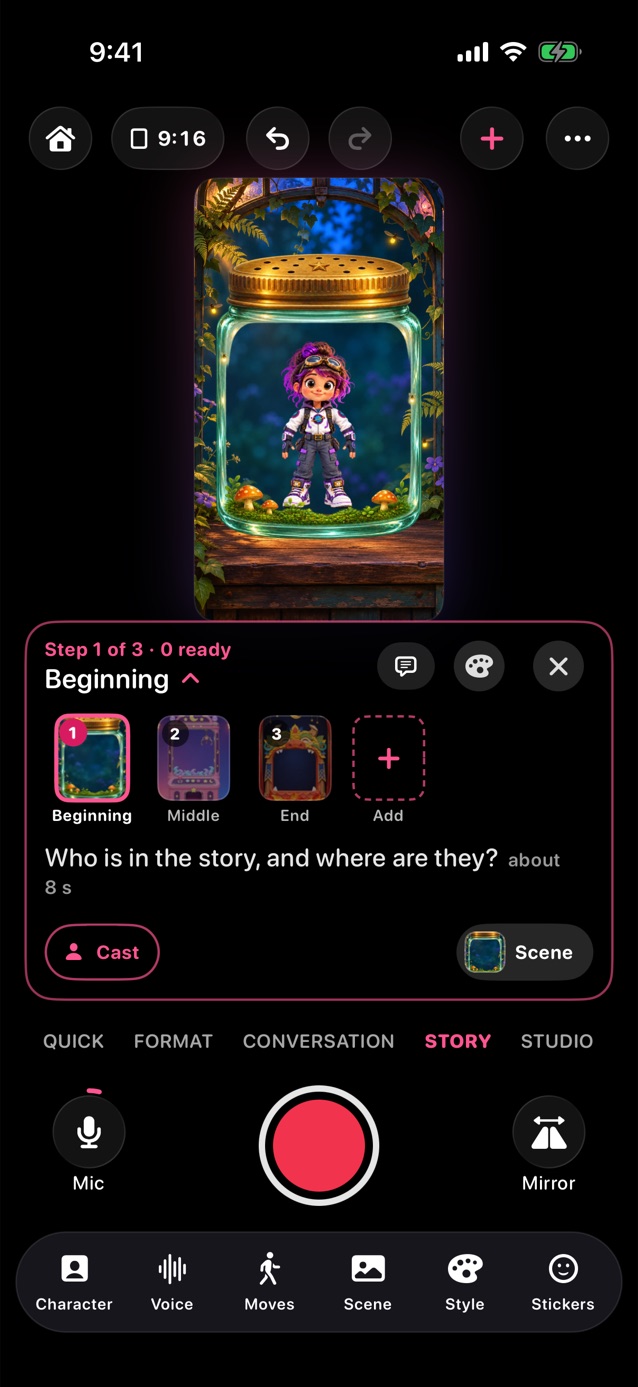
- The card under the stage shows one part at a time, with what to say. Need words? (the speech bubble on the card) gives you lines to read. Tap the red button to record the part, then go on to the next. Tap a part to record it again.
- Each part can have its own scene, cast and camera move: tap Scene, Cast or the camera on the card, and press and hold Scene to use it for every part. A camera move films that part only; the next part starts still. Press and hold a part to rename it, move it earlier or later, or remove it. Add, at the end of the parts, puts in another.
- Look, on the card, sets the story's style, whether to show the title and part names, music and how one part turns to the next.
- In a creator story, add the clip you're talking about From Photos or From Files, then tap Trim and credit to trim it and name whoever made it. Add › Add a clip puts in another. Pause when I talk or Lower it when I talk keeps your voice clear.
- When every part is ready, tap Make my story. It opens on the timeline to check, then tap Make video. Character-only export, part of YipYappy Plus, makes just your character on green or a see-through background, to add in the posting app's own duet tools.
Related
Still stuck? Email hello@yipyappy.com with your device and what happened.