
Step by step
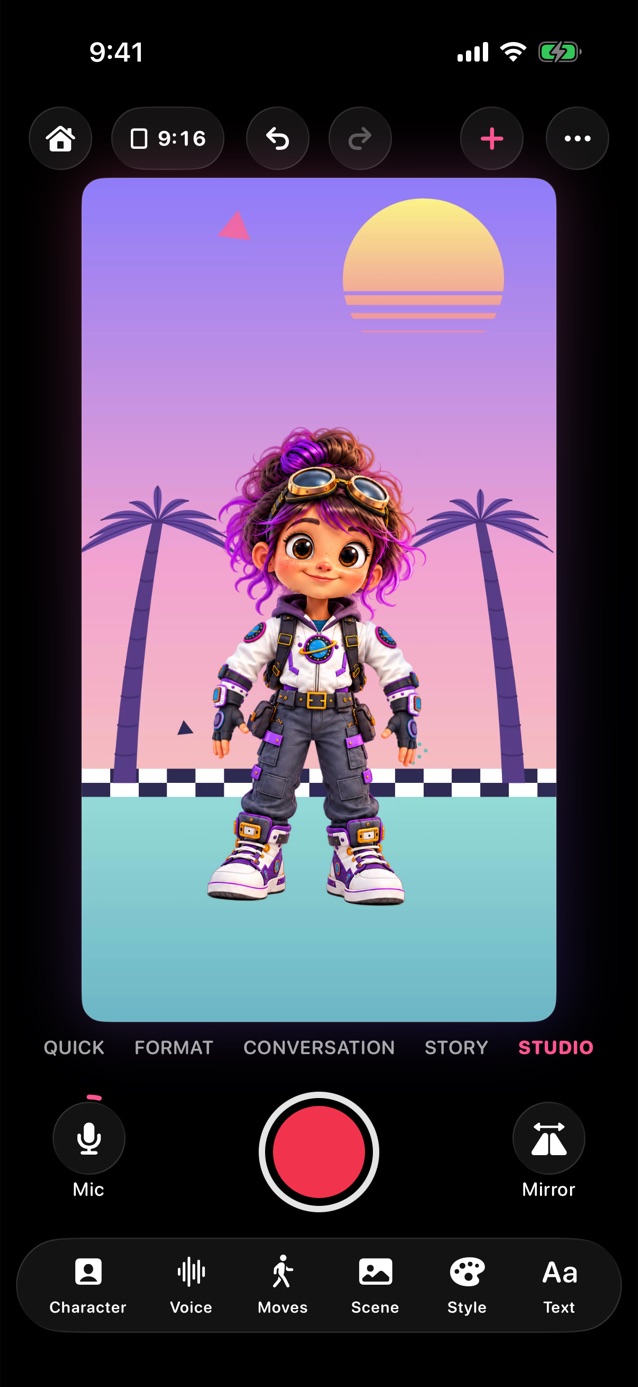
- On Home, tap Open Pro Studio (or the Studio tab).
- Above the record button, pick what you're making: Quick, Format, Conversation, Story or Studio. Each one puts the tools it needs in the dock along the bottom; Studio has them all. The + at the top switches too, and opens My scenes.
- Tap Character in the dock (or tap the character on the stage) and pick who talks.
- Need more of the stage? Tap the bar at the top of a panel to shrink it to its name and tabs, and tap again to bring it back. Drag the bar up to make the panel tall.
- Talk: the mouth follows your voice through the mic.
- Reading lines? Tap Voice, choose Mic, turn on Teleprompter and type them. They scroll at the top while you record.
- Rather type it? Tap Voice, choose Type, write the lines, pick a voice and tap Make voice.
- Stuck for an idea? In Format, tap Pick a format. The chips at the top sort them: Creators, Family and friends, Pass it on, Two characters and Classroom. Each sets the shape, length, a matching background and frame, the entrance, captions and music, and writes moves into the script. Shuffle tries another scene. Fill in the [brackets], then record; the moves play as you read. Once one is on, the card under the stage shows its name and first line; Change picks another.
- Changed your mind? Tap the curved arrow at the top to undo.
- Tap the red button. Before it counts down, Start, End and Camera show under the stage: pick how the character comes on, goes off and how the camera films it. Styles sets all three and a move together; Save as my style keeps yours, at the top of Styles. Tap a shortcut to try it. Tap the red button again for 3, 2, 1. The X goes back. In Quick it counts down straight away; elsewhere, touch and hold the red button for Quick take.
- While you record, the shortcuts play with one tap. More opens everything: Favorites, Actions, Moves, Faces and On/Off.
- Tap the red button to stop. Your End plays first, then the clip opens to preview. It's saved in Clips too.
Related
Still stuck? Email hello@yipyappy.com with your device and what happened.