
Step by step
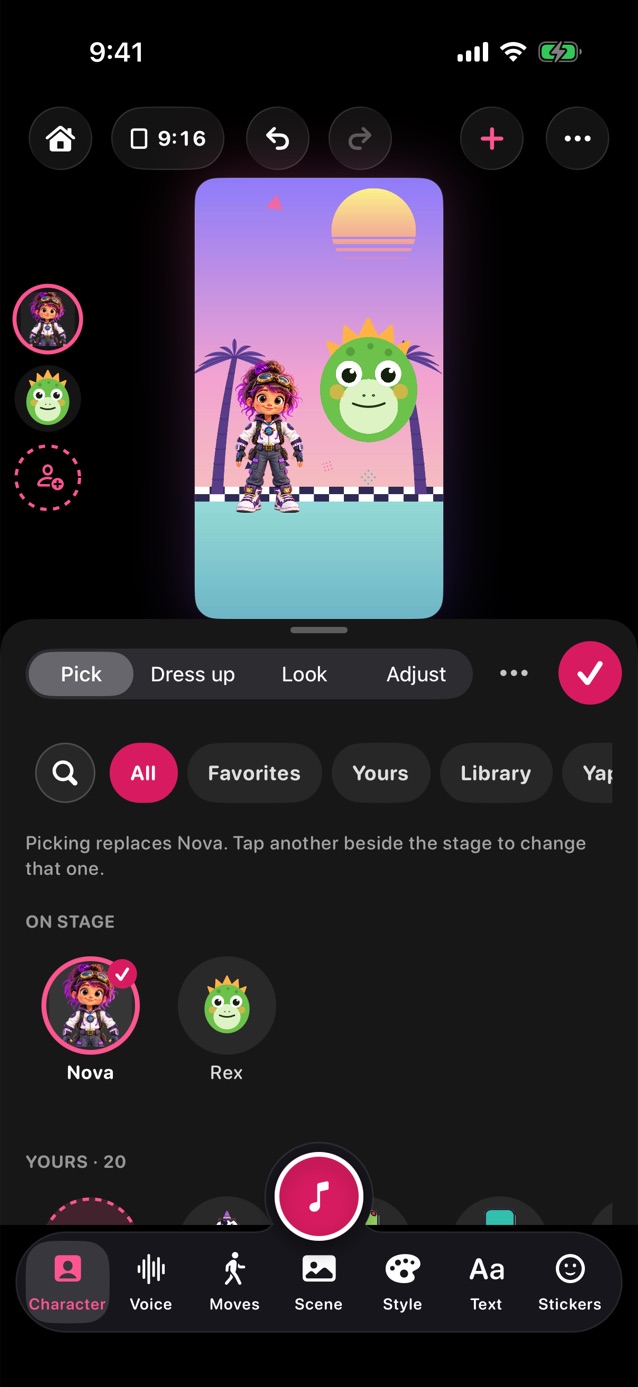
- Pick Conversation above the record button. Choose Just me to do every voice yourself, or a way to send it to someone. Already started one? Continue your conversation is at the top. Or, in any mode, tap the dashed button beside the characters to put another one on (up to three).
- Tap a character on the stage or in On stage to pick it, then choose who it is. Moves, faces and Dress up go to whoever is picked. Drag, pinch or twist a character on the stage to move, resize or turn it.
- Standing close together? Pick one and tap To front or To back in Character › Adjust, or touch and hold it beside the stage. Each character stays whole, in front of or behind the others.
- Typing the words? Tap Voice › Type, then Add a line for each line and choose who says it. Each character can have its own voice and voice effect.
- Using your voice? Tap Voice › Mic. Take turns records one turn at a time, in order: you'll hear the turn before so you can answer, then 3, 2, 1 before the mic comes on. While a turn records, moves and faces for that character are right under it, and they're kept with the turn. After each turn, play it back, redo it or record the next one. One person can do every voice, or pass the device.
- Tap the red button. The moves follow whoever is talking, and captions color each character's words. To act one out yourself, tap its name beside the stage.
- Friend on another phone? In Conversation, tap Send to someone under the stage. Pick Record my part first: the big button records each of your turns, and after each one you can preview it, redo it or send it. Or send it now and let them go first. Lines you've typed go with it. They get a link: tapping it opens YipYappy (or shows where to get it). With AirDrop, in School mode or without iCloud, it goes as a file instead: they tap it, then Share › YipYappy. It opens on It's your turn: they hear your part, see which character is theirs and tap Record my reply, then Send it back. Whoever records the last turn can make the video. Each time it comes back, it opens with the newest turns, and anything you hadn't sent is kept in My scenes.
- Want one made to send? In Send to someone, pick a card under Back and forth, like Guess what!, Knock knock or Story chain. Write both sides, record yours, then send it. Once you've recorded a turn, the card under the stage says Send it and sends it straight away; it's also at the top of Take turns. Camera, beside Scene on a turn, gives that turn its own camera move; the next turn starts still.
- Under the Send card, Save to My scenes keeps the conversation, with its lines and recorded turns, to open and carry on later. New conversation starts another one with the same characters. Once the turns show under the stage, both are in the ••• beside them.
- Idea starters like News explainer, Short interview and the Family and friends ones add a second character for you.
Related
Still stuck? Email hello@yipyappy.com with your device and what happened.